
eMail settings on new server
How to setup your email client.
PX Media Servers/Hosting eMail settings
Follow each step very closely. If one field is not correct your eMail will not work.
Mail settings are as follows.
note: Only make edits if you are experiencing email problems or You are setting one up for the first time.
User name: Always use the Full Email Address (na**@yo********.com) in any “user name” field.
Problem/Solution: (Another possible problem could be upper and lower case in the user name. It’s always best to try all lower case first).
If you have tried everything and you email is still not working, try changing your password to the default password that was used when your email account was setup
INCOMING
Incoming mail/pop server set to: mail.yourdomainname.com
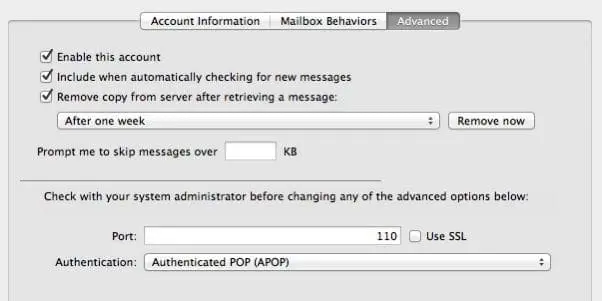
Incoming port should be 110 unless your ISP requires something different.
If you want to use the secure port 995 be sure to select the use SSL box. Only used by some accounts.
When you start your eMail APP, accept the certificate warning if you get one and connect anyway.
(Use your domain name in the below sample to your domain) DO NOT USE MY DOMAIN NAMEs or UserNames.
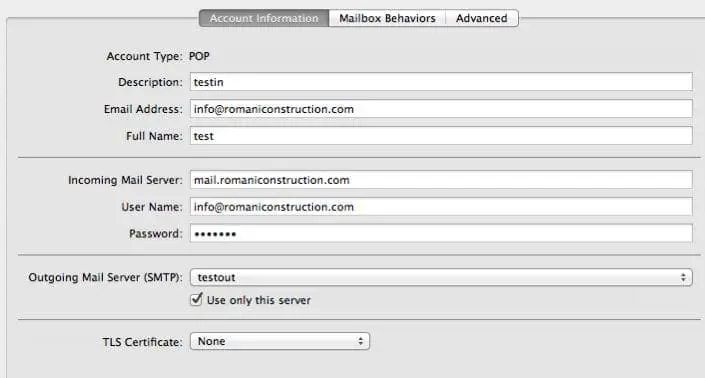
This is not for SSL, use port 110 and (be sure to uncheck the Use SSL)
Please set/check yes REMOVE copy from server if you only use this account on one computer / device.
If you are using multiple computers and or cell phones on the same email address you may experience problems when connecting “sending/retrieving” at the same time. Our system only allows one device to connect at a time. Try turning one off if your experiencing problems.
You only have a limited amount of space on the server. So, keep your spam and trash folders empty. (If your inbox gets to big it may be removed) So, Keep a backup ALWAYS.
Set the incoming authentication to: “Authenticated POP (APOP)”.
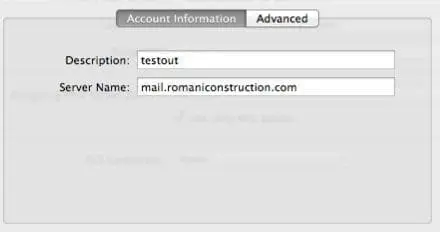
OUTGOINGOutgoing mail server (SMTP) Settings tab. Open tab and use below settings.
Account information tab.
- Description: this is the name you will see for your account in your eMail application (not important)
- Outgoing mail/SMTP server set to: mail.yourdomainname.com
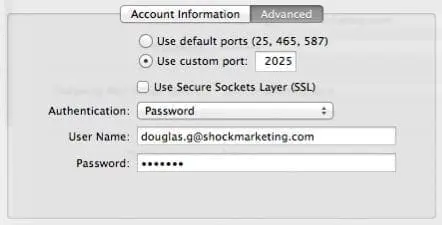
- Outgoing MUST have authentication via password (set to YES)
- Outgoing port use custom port. (write in 25 or 2025) 2025 is always better. Many ISP’s (AT&T, Verizon, etc…) block port 25.
- Authentication: Set to password
- User Name is your FULL eMail address
- Password is your normal password (Us the default that was given to you)
- (Replace with your domain name in the below samples)
Frequently Asked Questions
What are the recommended incoming and outgoing mail server settings for PX Media’s email service?
Incoming Mail Server (IMAP/POP3): mail.pxmedia.com
Outgoing Mail Server (SMTP): mail.pxmedia.com
Port (IMAP): 993 (SSL)
Port (POP3): 995 (SSL)
Port (SMTP): 465 (SSL)
What username should I use when setting up email?
Do I need to enable authentication for sending emails?
What if I get an SSL error while setting up my email client?
Can I use webmail to check my emails?
What devices and email clients are compatible with PX Media’s email settings?
How do I know whether to choose IMAP or POP3?
Is there a limit on email storage or attachment size?
What should I do if I can't send or receive emails after updating settings?
First, double check that your server names, ports, and authentication options match PX Media’s specifications. Restart your email client and internet connection. If issues persist, contact PX Media support.
Can PX Media assist with setting up email on my device?
Helpful next steps from eMail settings & Hosting
eMail settings & Hosting often connects with service questions, support needs, project review, or the next conversation with PX Media. Use these options to continue from eMail settings & Hosting into Site support page, useful resources, or direct support.
Local Digital Marketing Agency
eMail settings & Hosting pairs well with Local Digital Marketing Agency when you want a clearer next move before changing campaigns, design, or measurement.
Digital Marketing Services
Digital Marketing Services gives eMail settings & Hosting a stronger follow-through path for planning, service review, and practical action.
Blog & Press
Blog & Press can connect the ideas around eMail settings & Hosting with a more focused service conversation.
Talk To Us
eMail settings & Hosting often leads into Talk To Us when the goal is better clarity, cleaner tracking, or stronger lead quality.
Common questions around eMail settings & Hosting
Who should use eMail settings & Hosting as a next step?
eMail settings & Hosting is useful for visitors who want a clearer way to continue with PX Media, whether the need involves site stability, speed, support response, backups, updates, and performance checks. Around eMail settings & Hosting, it can also help teams decide whether to ask for service help, support, or a planning conversation.
What information helps PX Media respond faster after eMail settings & Hosting?
The most helpful details after eMail settings & Hosting are the business goal, current website or campaign concern, service area, timing, and any examples of what is not working. For Site support page after eMail settings & Hosting, those details make it easier to recommend a practical starting point.
Can PX Media connect eMail settings & Hosting with a broader marketing plan?
Yes. PX Media can connect eMail settings & Hosting with service planning, website improvements, campaign review, and measurement. That helps the next step after eMail settings & Hosting feel organized instead of becoming another disconnected task.
Continue with PX Media after eMail settings & Hosting
Share the goal, timeline, website concern, or service question connected with eMail settings & Hosting. PX Media can point you toward a practical next step that fits eMail settings & Hosting.